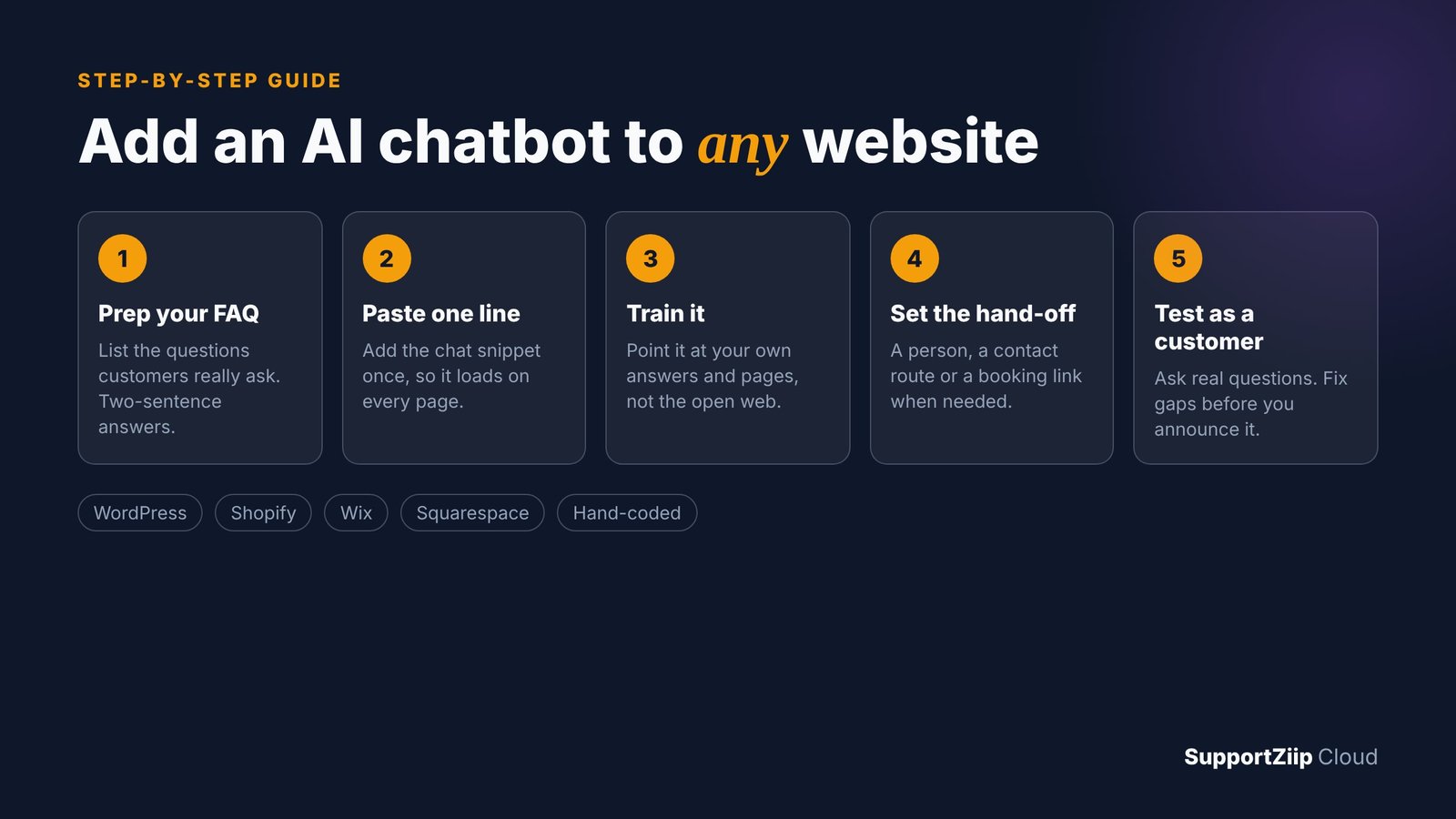
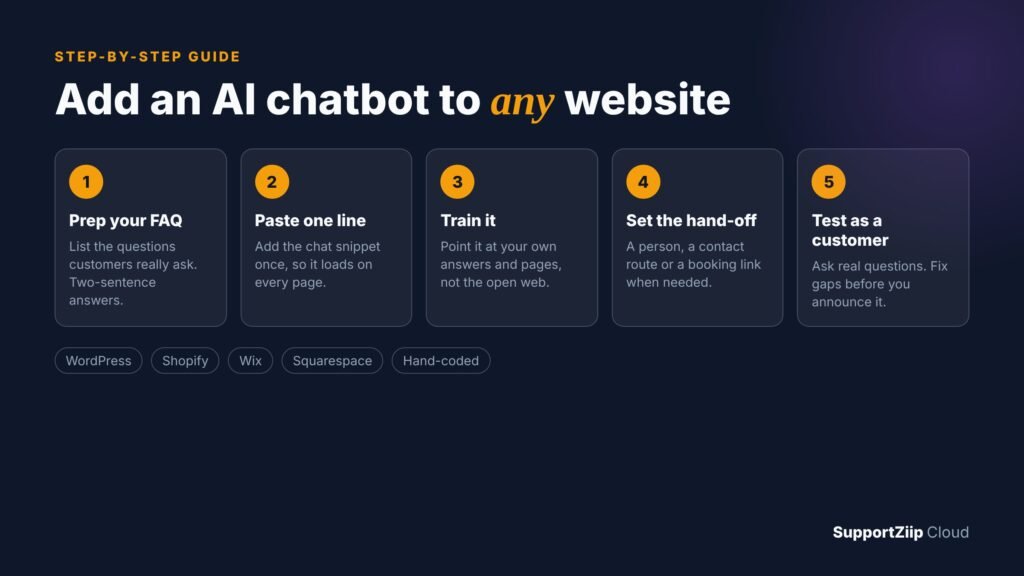
Short answer: To add an AI chatbot to any website, write down your top customer questions, pick a hosted chatbot tool, train it on those answers, then paste its one-line embed code into your site header or footer. Set a hand-off to a person, test it like a customer, and publish.
I am Dele Ogundele, an MBA coder who builds AI tools for businesses. Small business owners ask me this question all the time. Most guides online are written by chatbot vendors or aimed at developers. This one is for you, the owner. It works on WordPress, Shopify, Wix, Squarespace or a hand-coded site.
The install is the easy part. It is one snippet of code. What decides whether the chatbot helps or hurts you is what you do before and after you paste it.
What you need before you start (FAQ-first prep)
A chatbot can only answer well from good source material. So start with your FAQ, not the tool. Other guides, like the one from Elfsight, also advise gathering your top questions and writing them the way customers ask them. I agree.
- List 25 real questions. Pull them from your inbox, phone calls, DMs and past orders. Use the customer’s words.
- Write a short answer for each. Two or three sentences. Include prices, hours, delivery times and policies.
- Remove conflicts. If your site says one thing and your FAQ says another, the chatbot will repeat both.
- Decide what it must never answer. Legal advice, refunds over a set amount, anything personal. These go to a person.
- Find your booking link or contact route. You will need it for the hand-off.
Want a head start? Grab the free 25-question FAQ template (PDF). It gives you the format I use.
How to add the chatbot, platform by platform
Every hosted chatbot gives you a snippet, usually a short <script> tag. The only question is where you paste it. Paste it once so it loads on every page.
WordPress
Add the snippet to your site-wide footer, or place it in a Custom HTML block if you only want it on certain pages. A header-and-footer code plugin or your theme’s footer settings both work. Do this in a staging copy first if you have one.
Shopify
Shopify themes use a layout file called theme.liquid. Shopify’s developer documentation says it is the default layout file that every theme must include. Your snippet belongs inside this file, before the closing body tag. In the theme code editor, open theme.liquid and paste it there. Leave the content_for_header line alone, because Shopify says changing it can break how your pages behave.
Wix
Wix has a built-in tool. Per the Wix Help Center, go to Settings, then Custom Code under Development & integrations. Click Add Custom Code, paste the snippet and name it. Under Add Code to Pages choose All pages, so new pages get it too. For placement, Wix suggests the body section for functional scripts, so choose Body – end. Click Apply. Wix says your site should be published and have a connected domain first.
Squarespace
Open the Code Injection panel. Per Squarespace’s help page, code in the Footer field is added before the closing body tag on every page. Paste your snippet there and save. Squarespace lists code injection on its Core, Plus and Advanced plans, and says its support team cannot troubleshoot custom code. Test on mobile after saving.
Hand-coded HTML
Paste the snippet just before the closing </body> tag on every page. If your pages share a footer file or template, edit it once. Upload and refresh.
How to train it on your own answers
Now load the FAQ you wrote. Add your 25 questions and answers first. Then add pages that already explain your services, pricing and policies. Keep the FAQ as the source of truth. When two sources disagree, fix the source.
- Write answers the way you would say them to a customer.
- Keep each answer short and specific.
- Add a plain “I don’t know” rule, so it says so instead of guessing.
- Give it your business name, tone and one clear next step, such as booking a call.
Your FAQ will grow. Every question the chatbot cannot answer is a new FAQ entry waiting to be written.
Set up the hand-off to a person
This is the step most guides skip. A chatbot that traps a frustrated customer loses the sale. Decide three things before launch:
- When it hands off. The customer asks for a person, the chatbot cannot answer, or the topic is on your never-answer list.
- How it hands off. A phone number, an email, a contact form or a booking link.
- Who answers, and when. Say your real hours, so nobody waits for a reply that is not coming.
Make the hand-off message kind and clear. For example: “I can’t answer that one. Here is the best way to reach a person on our team.”
Test it like a customer
Before you tell anyone, spend some time as a customer. Use your phone as well as your computer.
- Ask your 25 questions in your own words, then in clumsy ones, with typos.
- Ask something it should not know. It should say so.
- Ask for a person. Confirm the hand-off works.
- Ask for the price and the booking link. Click both.
- Check it on your homepage, a product or service page and the checkout or contact page.
Fix wrong answers in the source, not by patching the reply. Then test again.
Mistakes to avoid
- Skipping the FAQ. A chatbot with vague sources gives vague answers.
- Hiding the human. Always give people a way out.
- Letting it guess. Wrong prices and policies cost more than no answer.
- Launching without a mobile test. Many visitors are on phones.
- Never reading the chats. Review them weekly for the first month.
- Pasting the snippet twice. Two copies means two chat bubbles.
How to choose a chatbot tool
Many good tools exist, from big helpdesk suites to simple widgets. Use these questions to compare them fairly.
| Criterion | Ask | Why it matters |
|---|---|---|
| Install | One snippet, or plugins and API keys? | Fewer moving parts means fewer things to break. |
| Platform fit | Works on your site builder? | Check your platform, not just the vendor’s list. |
| Training | Can you add your own Q&A? | Your answers should outrank crawled pages. |
| Hand-off | Can it pass to a person or a booking link? | Customers must never get stuck. |
| Pricing | Is the message limit clear? | Know what happens when you hit the limit. |
| Scope | Website chat only, or many channels? | Do not pay for channels you will not use. |
| Control | Can you change its role and tone? | It should sound like your business. |
Where SupportZiip Cloud fits
Here is why I built it. Many of my customers’ tech providers pushed back on plugin installs and API setup. So I built SupportZiip Cloud as a hosted assistant. You add one line of code. That is the whole install.
The Starter plan is from $29 a month. It covers 1,000 messages and 1 website. It includes the Receptionist agent, which answers questions, shares your booking link and hands off to a person. Agents are switchable roles, and it is website chat only. If you need phone, SMS or social inbox support, it is not the right tool. See the pricing page for details, and the Which AI Agent guide (PDF) to pick a role.
FAQ
Yes, if the tool is hosted and gives you one snippet. You paste it into your site’s custom code, header or footer area. Most owners can do it without writing code.
Yes. All four let you add site-wide code. Where you paste it differs, as the steps above show. A hand-coded site works the same way, using the closing body tag.
The paste takes minutes. Preparing your FAQ is the real work, and it takes an hour or two. Plan for a short testing session before you go live.
A well-set-up chatbot says so and offers a person, a contact route or a booking link. Set this up before launch, not after the first complaint.
It varies by tool, message volume and number of sites. Compare the message limit and what happens when you pass it. SupportZiip Cloud Starter is from $29/month for 1,000 messages and 1 website.
Next step
Ready to put an assistant on your site? Start with your FAQ, then add one line of code.

Leave a Reply